Step-by-Step Guide: SIP Trunk Integration Between VOIP Gateway 32-512 and Asterisk / FreePBX
Introduction
Connecting the VOIP Gateway 32-512 to Asterisk or FreePBX essentially means creating a SIP Trunk on the PBX side pointing to the gateway, and configuring the SIP Server address on the gateway side. Once configured, PBX extensions can dial external numbers through the gateway’s SIM cards, and inbound calls can be routed from the gateway to PBX IVRs or call queues.
This walkthrough uses FreePBX 16/17 (chan_pjsip) and the VOIP Gateway 32-512 as examples to complete the configuration layer by layer. The SIP Trunk logic follows standard industry SIP trunk deployment models: the PBX acts as a registering client or peer endpoint, while the gateway acts as the SIP server or peer.
Before starting, gather the following information: the gateway’s LAN IP address (example: 192.168.1.50), the FreePBX server IP address, the gateway’s SIP port (default 5060), and authentication username and password.
If the gateway and PBX reside on different subnets, confirm firewalls allow SIP signaling and RTP media ports. When setting up a SIP Trunk, your authentication choice — registration-based vs IP-based authentication — directly impacts troubleshooting later, so confirm your chosen mode before you begin.
Step 1: Gateway-Side Configuration
- Log into the VOIP Gateway 32-512 web admin interface (default address printed on the device label).
- Navigate to the SIP settings page and enter the FreePBX IP address for SIP Server / Registrar Server.
- Under port / line configuration, map SIP extension numbers to each of the 32 ports, or use unified trunk mode if supported.
- Verify SIM card status: every inserted SIM should show Registered with valid signal strength.
- Save settings and restart the SIP service to apply changes.
Step 2: Create a PJSIP Trunk in FreePBX
Navigate to Connectivity → Trunks → Add Trunk → Add SIP (chan_pjsip) Trunk.
General Tab
- Trunk Name:
VOIP32 - Maximum Channels:
32(match the gateway’s concurrent call capacity)
pjsip Settings → General
- SIP Server: Gateway IP (e.g. 192.168.1.50)
- SIP Server Port:
5060 - Username / Secret: Match credentials configured on the gateway
- Authentication:
Outbound - Registration:
Send(registration mode) orNone(IP authentication mode)
pjsip Settings → Advanced
- DTMF Mode:
RFC 4733 - If behind NAT: Set Rewrite Contact, RTP Symmetric, Force rport to
Yes
pjsip Settings → Codecs
Enable only G.711 alaw / ulaw. Disable all other codecs to avoid transcoding overhead.
Step 3: Configure an Outbound Route
Navigate to Connectivity → Outbound Routes → Add Outbound Route.
- Route Name:
Via-GSM - Trunk Sequence: Select the newly created
VOIP32trunk - Dial Patterns: Add number rules that route calls through the gateway. For example,
9.strips the leading 9 and forwards the remaining digits to the gateway. - Submit and click Apply Config.
Step 4: Configure an Inbound Route
Navigate to Connectivity → Inbound Routes → Add Inbound Route.
- DID Number: Enter the SIP extension or trunk identifier mapped on the gateway side
- Destination: Choose where inbound calls land (IVR, queue, or individual extension)
Step 5: Testing & Common Issues
Outbound Test
Dial a mobile number from a FreePBX extension following your outbound route dial plan. After the call connects, verify two-way audio works properly.
Inbound Test
Call one of the gateway SIM numbers from a mobile phone and confirm the target FreePBX destination rings.
One-Way Audio
If only one party hears audio, the root cause is almost always NAT or blocked RTP ports. Double-check External Address and Local Networks inside Asterisk SIP Settings in FreePBX, and enable RTP Symmetric in the trunk’s advanced settings.
Registration Failures
Confirm the gateway’s SIP Server address is correct, port 5060 is reachable, and credentials match. Run pjsip show endpoints in the Asterisk CLI to inspect trunk status.
Frequently Asked Configuration Questions
Should Registration be set to Send or None in the FreePBX trunk?
Choose Send when the gateway registers to the PBX. Choose None for IP authentication, where the PBX validates traffic only by the gateway source IP and does not require registration. Do not mix the two modes; this causes unstable registration status.
I hear “All circuits are busy” during outbound testing, but the gateway shows free SIM slots. Why?
The most common causes: the trunk’s Maximum Channels value is too low, or the outbound route dial pattern does not match the dialed number. First validate your dial pattern match, then confirm trunk channel capacity meets the gateway’s concurrent limit.
Calls automatically drop after 30 seconds. How do I troubleshoot?
A 30-second disconnect is typically a SIP signaling issue (failed ACK routing), not a media issue. Confirm the correct transport protocol (UDP / TCP) is selected in PBX SIP settings, and verify the SIP Server address on the gateway matches the actual listening address of FreePBX.
Can I use a single SIP extension to represent all 32 ports?
This depends on whether the gateway firmware supports trunk mode, where all ports share one SIP identity. If the device only supports per-port mapping, you must assign a unique SIP identity to each port. Check the options in the gateway web UI.
Why does the trunk break after a FreePBX upgrade?
Major FreePBX releases can reset default PJSIP parameters such as authentication behavior and transport ports. First verify the trunk’s SIP Server and port settings were not overwritten, then recheck External Address in Asterisk SIP Settings.
What value belongs in the DID Number field for inbound routes?
Enter the SIP identifier (extension or trunk name) assigned to that trunk or port on the gateway. Under registration mode, the DID usually matches the registration username. Under IP trunk mode, use the From user value configured on the gateway.
References
- Dialaxy SIP Line vs SIP Trunk comparison: https://dialaxy.com/voip/sip-line-vs-sip-trunk/
- Ribbon Communications SBC security documentation: https://publicdoc.rbbn.com/spaces/SBXDOC82/pages/203785914/SBC+Core+Security+Best+Practices+Introduction
Commercial Content / Non-Legal & Non-Tariff Disclaimer
This article provides technical configuration guidance only. Parameter names, default values, and behavior may differ across FreePBX, Asterisk, and VOIP Gateway 32-512 firmware versions. The steps are not guaranteed to work identically for every firmware and software combination.
Configuration changes can disrupt live call routing. Validate all changes in a test environment before deploying to production. The publisher is not liable for service outages or configuration loss caused by following these instructions.
Blog
Learn more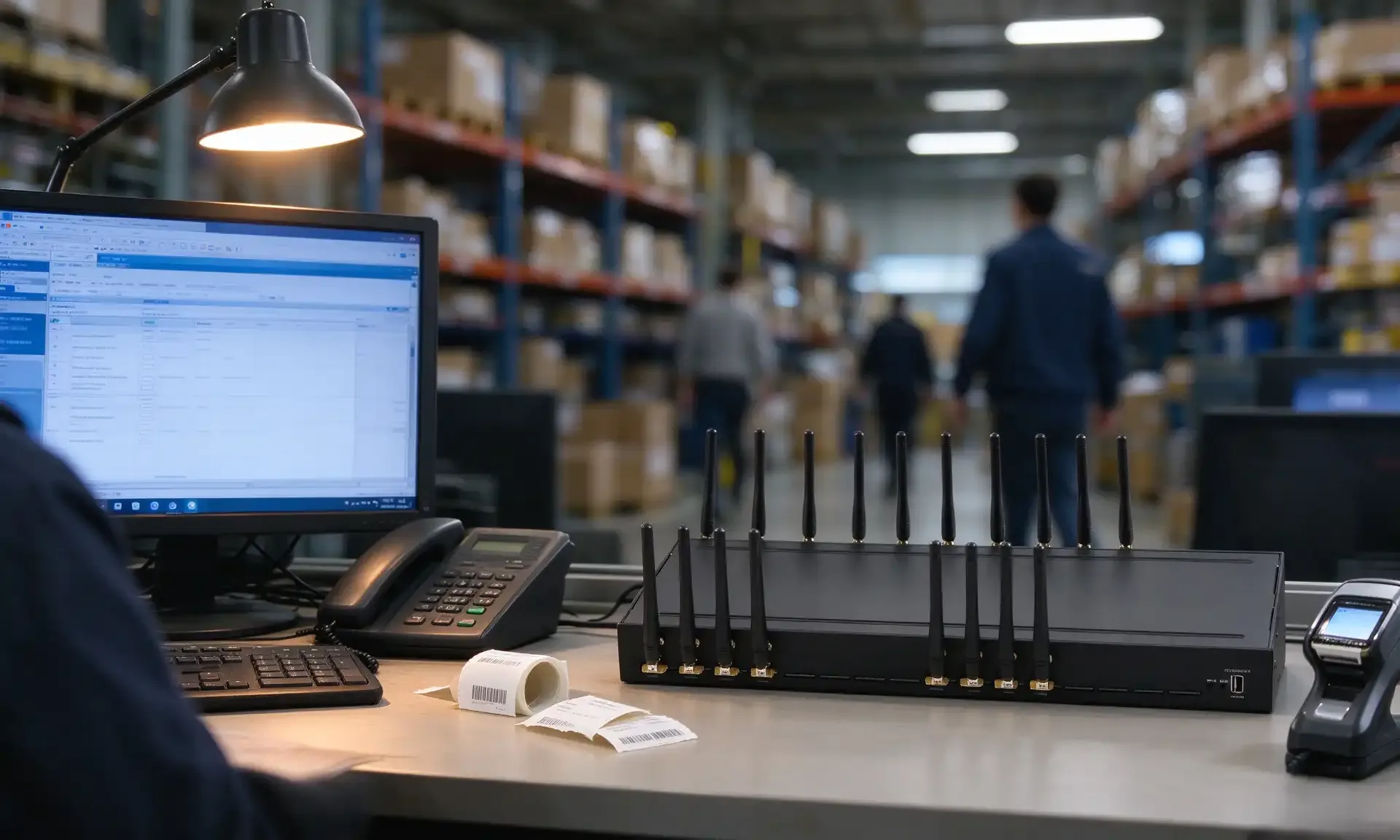
VOIP Gateway Cost Benefit Analysis: GSM Gateway vs PSTN Analog Gateway Comparison
Our VOIP gateway cost benefit analysis compares the VOIP Gateway 32-512 and traditional analog FXO gateways, covering pricing, scaling, carrier risk and call center use cases.
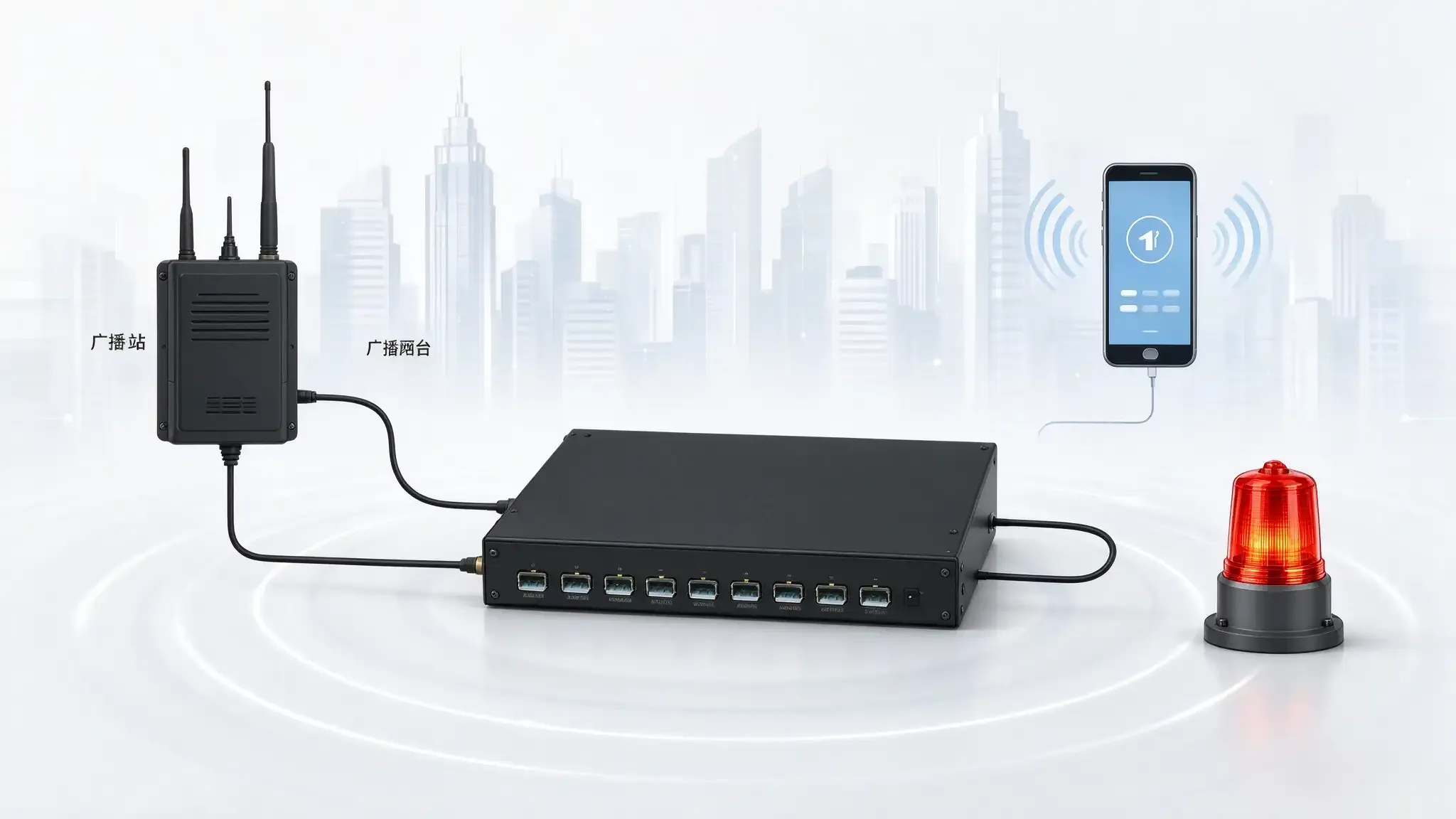
Enterprise VoIP Gateway Security Hardening: Toll Fraud Prevention Strategies Through the VOIP Gateway
A VoIP gateway for regulated industry needs defense in depth: IP ACLs, strong SIP auth, voice VLAN isolation, and ASR/ACD anomaly alerts to stop toll fraud.
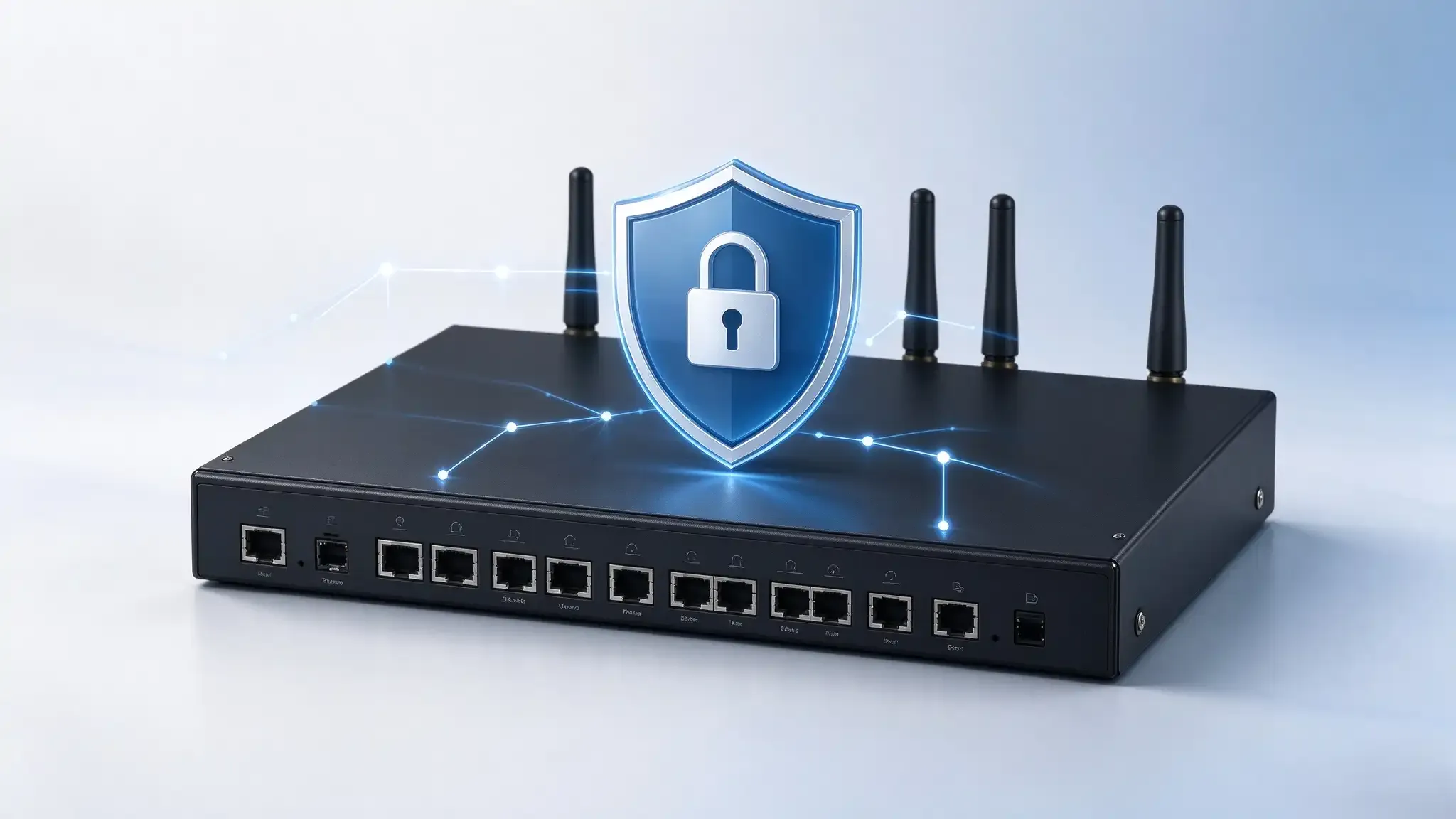
VoIP Gateway Deployment Checklist: 15 Compliance and Security Checks
Before deploying a VoIP gateway, run these 15 checks: power and cooling, VLAN isolation, SIP IP whitelisting, SIM real-name compliance, and security hardening.